
You can put Anthropic's Claude models behind your WhatsApp Business number in a few steps. Connect WhatsApp to Social Intents, route the number to a chat widget, then select Claude in that widget's AI Agent settings. Social Intents handles the connection to Meta's Cloud API, so there is no webhook server to build and no MCP configuration.
Once Claude is answering, train it on your website, help docs and spreadsheets. You can also add AI actions that reach into your CRM, ordering or ticketing systems to look up orders, add leads or create tickets.
What This Integration Does
This guide sets up a business support assistant powered by Claude. Customers message your business number on WhatsApp, and your team manages the conversation in the Social Intents Inbox or a connected team platform. It does not connect your personal WhatsApp history to the Claude desktop app.
The chat widget brings together your AI agent, knowledge and routing. WhatsApp is the customer's entry point, so you still configure a widget even if you aren't adding website chat.
Before You Start
- A plan that includes WhatsApp (the free trial, Basic, Pro or Business) and a chat widget for the team you want to connect. See Set Up Your First Chat Widget.
- Admin access to the Meta business portfolio you will connect, a number that can receive an SMS or voice call, and a payment card for WhatsApp Manager.
- Current FAQs, product documentation and policies for the assistant to learn from.
- A destination for human replies: the web Inbox or a connected team platform.
- An Anthropic API key. Claude always runs on your own key and has no included models. See Choosing Your AI Engine.
Connecting WhatsApp to Claude
Create or Select Your Chat Widget
Open Chat Widgets and select a widget, or create one for WhatsApp. Give it a clear name such as Customer Support.
If you already use a widget for website support, decide whether its content, instructions and team destination also fit WhatsApp. A dedicated widget helps when WhatsApp customers need different answers or a different team.
Connect Your WhatsApp Business Number
Go to Integrations, click Connect on the WhatsApp card, read the Before you continue to Meta checklist and click Continue to Meta. In Meta's window, choose your business portfolio and WhatsApp Business Account and verify the number (or scan a QR code to keep the WhatsApp Business app; see coexistence). When you're back, work through the Finish setup checklist, starting with a payment method in WhatsApp Manager. Full detail is in Setting Up WhatsApp Business.
Social Intents registers the number with the Cloud API and subscribes to message events for you. There is no API endpoint to build and no Meta access token to copy.

Route WhatsApp Messages to Your Widget
Go to Settings > Channels and expand WhatsApp. Under WhatsApp numbers, choose the widget for your number and click Save channel settings. The AI agent, knowledge and escalation rules all come from that widget. Running more than one number? See Multiple WhatsApp Numbers.
This link between the number and the widget matters: if WhatsApp points at one widget and Claude is enabled on another, your test won't use the assistant you configured.

Choose Claude and Add Your API Key
Open Chat Widgets > your widget > AI Agent. Choose Claude as the provider, paste your Anthropic key in API key, select a model and save. Set a customer-facing bot name and an AI disclosure; your opening message can say customers are talking to an AI assistant and can ask for a person at any time.

Which Claude Model?
| Model | Notes |
|---|---|
| Claude Sonnet 5 | Best balance of speed and intelligence, 1M token context. A good default. |
| Claude Opus 4.6 | Most capable. Slower and more expensive. |
| Claude Sonnet 4.6 | Balanced quality and cost. |
| Claude Haiku 4.5 | Fastest; suits high-volume, short answers. |
| Claude Sonnet 4.5 | Previous generation, kept for existing bots. |
Every Claude model uses your Anthropic key and bills your Anthropic account. If you'd rather not manage a key, ChatGPT includes GPT-6 Luna, GPT-5.6 Luna, GPT-4o and GPT-4o Mini in your plan; see How to Connect WhatsApp to ChatGPT. Test models against the questions your customers really ask before you choose.
Train Claude on Your Business Content
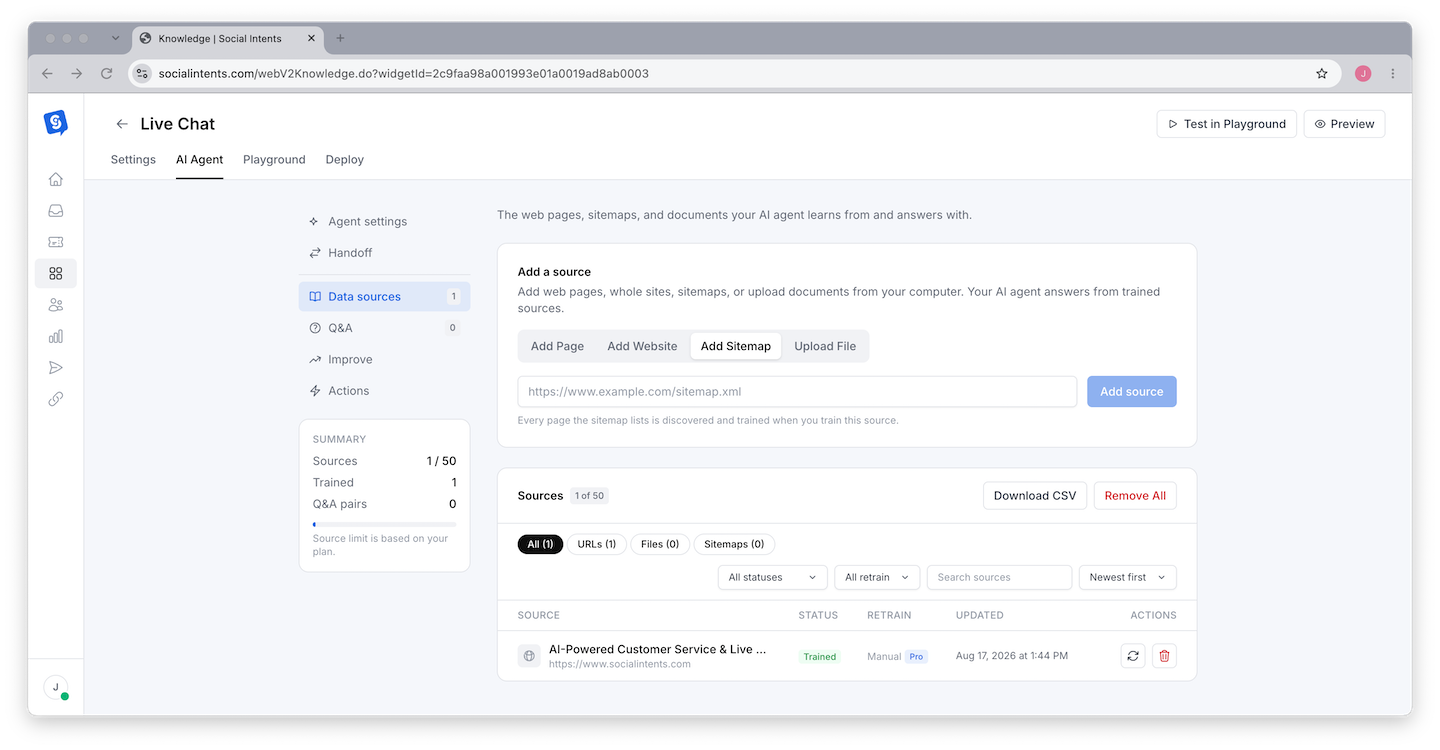
On the widget's AI Agent tab, open Data sources and add what customers need: a website section, help pages, an XML sitemap, or files such as PDF, Word and text documents. Start with current material on setup, capabilities, pricing, support hours and return policies.
Click Train All, wait for processing to finish and check each source's status. Add question and answer entries where the wording must be exact. See Training Your Chatbot on Your Content.
Write Instructions for WhatsApp Replies
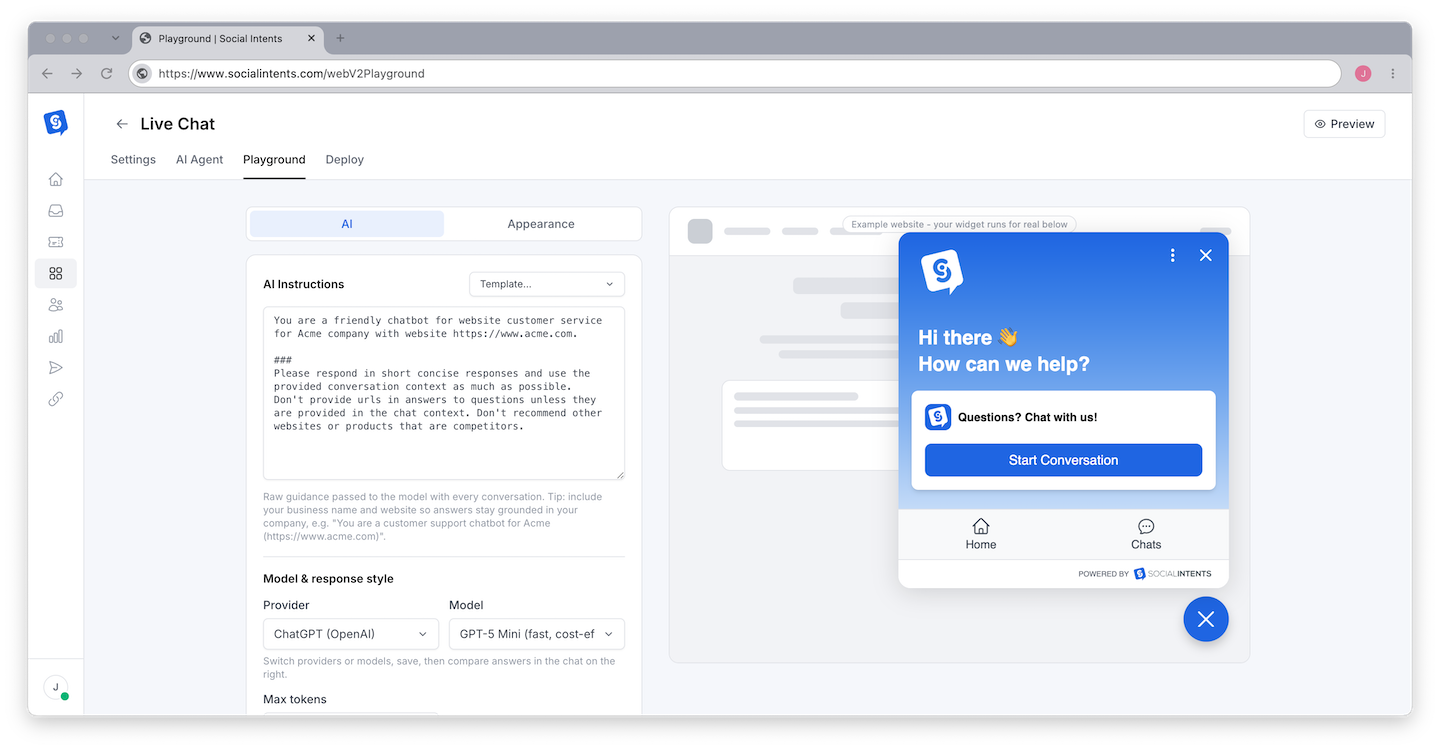
Open the widget's Playground to edit instructions and test responses. Keep replies short enough to read on a phone, define the assistant's scope, and say when a person should take over. Adapt this starting prompt:
You help customers of {Company} with {products or services}. Base factual answers on the supplied business content. Keep each reply brief enough to read comfortably on a phone. Ask a single clarifying question when the request is ambiguous. If the content does not establish an answer, explain the uncertainty and offer human help. Do not invent account details, refund decisions, availability, or completed transactions. Respect requests to speak with a person. Stay focused on our business.
Test ambiguous questions and unsupported requests as well as simple FAQs. See Writing Effective System Instructions.
Configure Human Handoff
Open Chat Widgets > your widget > AI Agent > Handoff. Turn on escalation for customers who ask for a person, and use your instructions to cover unresolved answers or billing disputes. Write a handoff message that matches your support hours, and avoid promising an instant reply you can't deliver. See Setting Up Escalation to Human Agents.
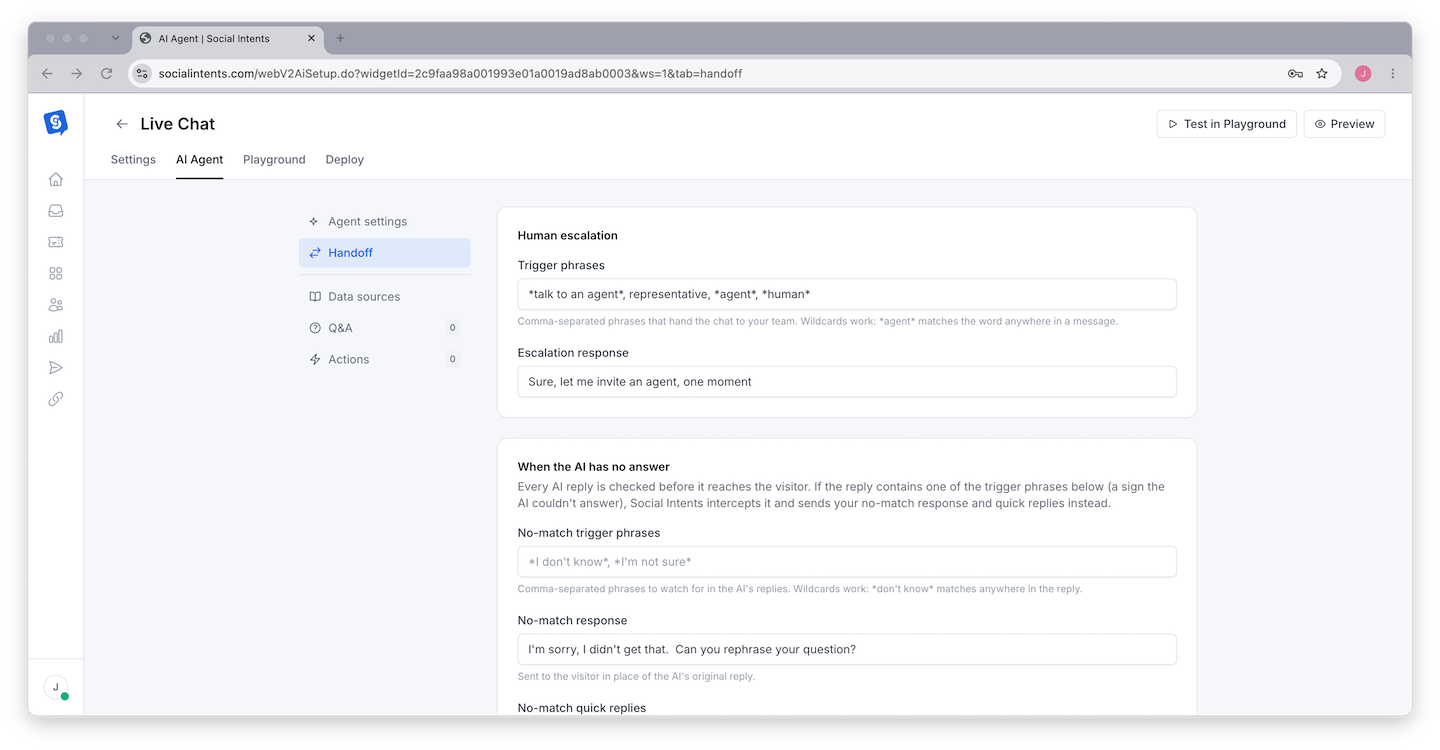
Where agents answer depends on the widget: Microsoft Teams, Slack, Google Chat or the web Inbox. WhatsApp has no offline form, so test after-hours behavior separately.
Test the Complete WhatsApp Conversation
Use a separate WhatsApp account to message your business number. The Playground helps you tune Claude, but only a real WhatsApp conversation tests the number, routing, AI response and human reply together.
| Test | What to check |
|---|---|
| Known answer | Ask a question covered by a trained page and compare the reply with the source. |
| Follow-up | Ask a related question without repeating the subject and check the answer fits. |
| Missing information | Ask about something not in your content and check the bot doesn't invent it. |
| Human request | Ask for support, have an agent reply, and check the reply arrives in WhatsApp. |
| After hours | Test with your team unavailable and review what the customer is told. |
| Coexistence | If you use it, check the phone app and the Inbox transcript, and agree who responds. |
WhatsApp Session Rules and Costs
WhatsApp allows free-form replies within 24 hours of the customer's last message, and each new customer message restarts that window. After it closes you need an approved template. In Settings > Channels > WhatsApp, choose a Re-engage template (after 24-hour window) so late agent replies don't fail. See WhatsApp Templates, Media & Sessions.
Budget for three things: your Social Intents plan, your Anthropic usage billed to your own API key, and Meta's charges. Meta prices WhatsApp per delivered message, by category and country, and bills your WhatsApp Business Account directly. Since October 1, 2026, replies inside the 24-hour customer service window, including AI replies, are free for the first 1,000 service messages per business number each month, then charged at a per-country rate. See Plans, Billing & Upgrades.
Troubleshooting
Messages never reach Social Intents
Check the customer is messaging the connected number, then check the Finish setup checklist and the number's widget in Settings > Channels > WhatsApp. See WhatsApp Setup Troubleshooting.
Messages arrive but Claude doesn't answer
Open the widget assigned to that number and check the AI agent is on, Claude is selected, your Anthropic API key is saved and valid, and training finished. Compare a Playground test with a new WhatsApp conversation to tell an AI problem from a routing problem.
Answers are outdated or inaccurate
Review the Knowledge source, remove contradictions and retrain. Add a precise question and answer where wording matters. See Improving Response Quality.
A delayed human reply fails
Check whether the customer's 24-hour window closed and whether a re-engage template is set. If templates fail, check your WhatsApp Business Account has a payment method (Meta error 141006).
Frequently Asked Questions
Do I need an Anthropic API key?
Yes. Claude always runs on your own Anthropic key, entered on the widget's AI Agent tab, and Anthropic bills you directly. ChatGPT is the option with included models.
Can I connect WhatsApp to Claude without coding?
Yes. Social Intents provides the WhatsApp connection and the Claude configuration in the dashboard. No MCP server, webhook application or automation builder is needed.
Is this a Claude Desktop WhatsApp connector?
No. This puts a Claude-powered business assistant behind your WhatsApp Business number. It doesn't import personal WhatsApp conversations into Claude Desktop.
Can my team reply from Microsoft Teams or Slack?
Yes. Route the number to a widget connected to the team platform you want, or work from the web Inbox.
Can I keep the WhatsApp Business app on my phone?
Yes, with coexistence. Check both interfaces after connecting and agree who answers so customers don't get two replies.
Will Claude understand voice messages and attachments?
Don't assume so. Incoming media appears in transcripts, but receiving a file isn't the same as the model reading it. Test the exact media workflow before promising it.
Can I use this as a general purpose Claude bot?
This setup is designed for answering questions about your business. Meta applies specific terms to general purpose AI assistants on WhatsApp, so keep the assistant focused on your products, services and support.